Repair a subtitle file
Check timing, overlaps and encoding in the browser.
A transcript can have the right words and still be difficult to watch. One sentence arrives after the speaker has finished. Two lines sit on top of each other. Chinese characters look fine in an editor but turn into nonsense after import.
Those problems need different fixes. Moving every subtitle earlier will not repair a file that only goes wrong after a cut, and converting to UTF-8 will not recover characters that have already been lost.
This guide covers existing SRT and WebVTT files. The practice files are deliberately constructed examples, not real AI outputs or a comparison of transcription models. Their settings and downloaded results were checked in the local ToolKnit web tool on October 8, 2026.
Find the problem before changing the file
Keep the original subtitle file and work on a copy. Make sure the video you are checking is the same edit used to generate the subtitles. A different opening, trimmed pause, or missing scene can make an otherwise usable file look wrong.
Watch a short passage near the beginning, another in the middle, and one near the end. Choose lines with an obvious start: a clear spoken phrase is more useful than quiet background speech. Write down when each phrase starts in the video and when its subtitle starts.
| What you notice | What to check | First repair to try |
|---|---|---|
| Every checked line is about two seconds late | Is the difference similar at the start, middle, and end? | Shift the subtitles earlier by two seconds |
| The beginning is close, but the delay grows | Does the difference grow fairly evenly? | Two-point calibration, followed by a middle check |
| Timing suddenly changes after an edit | Is there a cut, inserted clip, or missing scene there? | Adjust the affected range or rebuild that section |
| Two different lines appear together | Are both people actually speaking? Are two tracks enabled? | Review the overlap before trimming anything |
| Chinese text becomes strange characters | Does the original file display correctly with a different encoding? | Reopen its original bytes with the correct encoding |
| The player refuses the file | Are the structure and timestamps valid? Is the format accepted? | Check the file, then correct the reported errors |
Do not use the player's delay control as proof that the file is fixed. It may only change playback on your device. If you need to share or upload the corrected subtitles, export a new file with the repaired times.
You can use ToolKnit's Subtitle Repair & Sync tool for the steps below. It processes subtitle files in your browser and preserves the loaded original. It checks and adjusts existing text; it does not listen to the audio and choose the correct timing for you.
Move subtitles earlier or later with a fixed time shift
A fixed time shift works when the same delay appears throughout the video. Both the start and end of each selected subtitle move by the same amount, so the line stays visible for the same duration.
The sign is easy to mix up:
- Positive seconds make subtitles appear later.
- Negative seconds make subtitles appear earlier.
If a phrase starts at 5 seconds, but the subtitle starts at 7 seconds, the subtitle is two seconds late. Enter −2. If the phrase starts at 5 seconds and the subtitle starts at 3 seconds, enter +2 instead.
In ToolKnit:
- Select Choose subtitles and open the SRT or VTT file. Pasted text also works when the text already displays correctly.
- Read the check results. If you have used the tool for another file, choose Reset options so earlier settings do not carry into this repair.
- Under Timing adjustment, select Shift by a fixed amount.
- Enter the value in Shift in seconds. For the late-subtitle example, use
-2. - Keep From cue position at
1and leave Through cue position blank to adjust the whole file. - Select Preview these changes, review the output, and choose Download subtitles.
The practice file has three subtitle starts. Applying −2 seconds produced this downloaded result:
| Line | Original start | Repaired start |
|---|---|---|
| The first line starts here. | 00:00:07,000 | 00:00:05,000 |
| Check the middle of the video. | 00:00:13,000 | 00:00:11,000 |
| Now check the final line. | 00:00:18,000 | 00:00:16,000 |
Download the original practice SRT, the repaired SRT, and the 21-second reference video. The video uses synthetic speech and visible sentence markers around 5, 11, and 16 seconds. It is a small exercise for learning the controls, not evidence of automatic speech alignment.
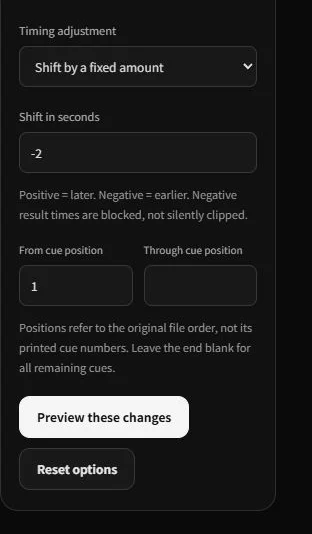
Actual local ToolKnit interface. This setting moves the selected subtitle range earlier; the original file stays unchanged.
Check the first line after a negative shift. If it would start before zero, ToolKnit blocks export rather than silently cutting it off. Recheck the offset or apply the shift only to the affected range. A file may be valid in structure and still be out of sync, so always check playback too.
Fix subtitles that drift further out of sync
Progressive drift is different from a constant delay. A line near the beginning might be correct, while a line ten minutes later is ten seconds late. Moving everything back ten seconds would damage the beginning.
Two-point calibration can help when the change is reasonably even. You supply two matching moments: each line's current subtitle time and the time it should have in the video. The tool scales the times between them and applies that mapping to the selected range.
Choose reference points far apart, with clear speech. Do not use one word near the start and another a few seconds later to estimate an hour-long video. A small measurement mistake becomes more noticeable over a long distance.
For the constructed example, use:
| Field | Value in seconds |
|---|---|
| Subtitle time A | 10 |
| Correct video time A | 10 |
| Subtitle time B | 610 |
| Correct video time B | 600 |
Open the progressive-drift SRT, reset the options, and select Two-point linear calibration. Enter those four values, preview the changes, and export a separate result.
The first start remains at 10 seconds. The final start moves from 610 to 600 seconds. The middle start, which was not used to set the mapping, moves from 310 to 305 seconds, or 00:05:05,000. The downloaded repaired file contains those results.
This middle check matters. Two reference points will fit the mapping you asked for; that alone does not establish that every line matches real speech. On your own video, listen at another point you did not use for calibration. If that line is still badly wrong, one straight adjustment may not describe the problem.
Calibration also changes end times. In the example, a two-second subtitle becomes about 1.967 seconds long. Review reading time, especially for longer lines. Do not automatically blame the video frame rate: subtitles can be wrong for several reasons, and a particular generator's behavior needs its own evidence.
Repair a sudden timing jump after a cut
When timing is good until one exact scene and then becomes consistently wrong, look at the edit there. Removing four seconds from the video without updating its subtitles can leave the remaining lines four seconds late.
A whole-file shift would disturb the part that was already correct. A two-point stretch would spread the correction across that good section. Neither matches a sudden jump.
For one affected tail of the file, use a fixed shift with a range. Find the first subtitle after the edit, enter its position in From cue position, and leave the end blank to include the remaining entries. Preview the boundary as well as the later lines.
For example, if the affected section begins at the 50th entry and is four seconds late, use position 50 with a shift of -4. Positions mean the order of entries in the currently loaded original file, not the printed SRT numbers. That distinction matters if numbering is missing or inconsistent.
If the video now contains several cuts, added sections, or reordered scenes, repair it in a subtitle editor alongside the final video, or regenerate the affected parts. A time shift cannot invent dialogue for a new scene. Check subtitles that cross the cut: their text or duration may need manual editing even when later lines move correctly.
Fix overlapping subtitles without losing dialogue
An overlap means that one subtitle is still active when another starts. It does not automatically mean either line is wrong. The WebVTT format permits overlapping subtitle cues, which can be useful when people speak at the same time.
First, watch the relevant moment. If the earlier speaker has finished but their subtitle remains on screen, shortening that line may be appropriate. If both speakers are talking, keep their words and review how the destination player presents them.
Also check whether you have enabled two subtitle tracks, or a separate track alongside captions already burned into the video. Repairing timestamps in one SRT will not remove that duplicate display.
Here is a simple unintended overlap:
1
00:00:03,000 --> 00:00:06,000
The first person has finished speaking.

2
00:00:05,000 --> 00:00:08,000
The next person starts speaking.
The lines overlap from 5 to 6 seconds. In ToolKnit, reset the options, leave Timing adjustment on Keep original timing, and enable Trim earlier cues to remove overlaps. Preview before downloading.
For this practice file, the first end time changes to 00:00:05,000. The second line stays at 5–8 seconds. Both pieces of dialogue remain in the repaired file.
Trimming is not a reading-quality check. Cutting a long sentence down to half a second might remove the overlap but leave nobody enough time to read it. Review the result and split or rewrite the line if necessary. The tool also skips trims that would invalidate a cue; it does not delete words to make every warning disappear.
Fix garbled Chinese text by reopening the original file
For garbled text, the first question is whether the file still contains the original characters' bytes. An older Chinese SRT may use GBK-compatible GB18030 or Big5 rather than UTF-8. Reading those bytes as UTF-8 can fail or display the wrong characters.
Changing the filename or extension does not change its encoding. Saving already damaged text as UTF-8 can simply preserve the damage in a different format.
Use the original file, not a copy pasted from an editor showing broken text:
- Select Choose subtitles and open the file.
- If Auto cannot establish UTF-8, choose the known original encoding under Original file encoding. Use GB18030 / GBK or Big5 when appropriate for the file's source.
- Select Check subtitles and inspect several lines. Successful decoding alone does not prove you chose the right encoding.
- Reset unrelated repair settings. Keep the original timing if timing needs no change.
- Preview and export SRT / UTF-8 or WebVTT / UTF-8, as required by your destination.
The GB18030 practice file contains 中文. Auto rejected its non-UTF-8 bytes. Choosing GB18030 / GBK and checking again restored the intended visible text. The downloaded UTF-8 output preserves those two characters and the original times.
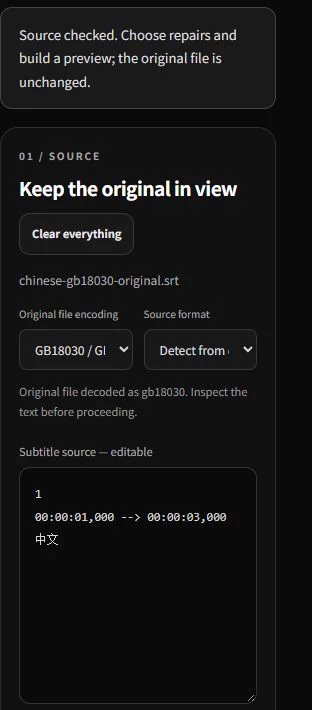
Actual local file operation. The original byte sequence was decoded correctly before UTF-8 export; damaged pasted text was not used.
If you edit the source text, ToolKnit disables encoding selection because that text has already been decoded. Choose Restore original file or reopen the untouched file to try another encoding.
Other text problems need different treatment:
- Squares instead of Chinese characters: check the player's font and language support. If the text reads correctly elsewhere, the subtitle bytes may be fine.
- Replacement symbols such as
�, or question marks saved over the original text: return to an earlier original, backup, or transcript. Changing encoding cannot recreate information that was discarded. A question mark can also be genuine punctuation, so inspect the source. - Readable Chinese with wrong words: that is a transcription or translation error. Correct the dialogue or regenerate it; encoding does not understand what was said.
WebVTT requires UTF-8 and allows an optional byte-order mark. Chinese does not universally require a UTF-8 BOM to display correctly. Follow the destination's documented requirements rather than adding one as a general cure.
Repair an SRT file that will not import
An SRT can look readable in a text editor but still have an invalid timestamp, a missing separator, or an end time before its start time. Check the structure before regenerating all the subtitles.
A conventional SRT entry contains its number, timing line, dialogue, and a blank line before the next entry:
1
00:00:05,000 --> 00:00:07,000
The first line starts here.

2
00:00:11,000 --> 00:00:13,000
Check the middle of the video.
Use hours:minutes:seconds,milliseconds for SRT timestamps and --> between start and end. Do not insert a blank line between the timing line and its dialogue. WebVTT uses a WEBVTT header and a dot before milliseconds; changing .vtt to .srt is not a conversion.
In ToolKnit, start with the reported location. Renumbering is enabled by default. Sorting entries, deleting empty entries, swapping reversed times, and trimming overlaps are separate choices because they can change the result.
Only swap reversed start and end times when you know the numbers were exchanged. A zero-length line needs a real end time; a malformed timestamp may need manual correction. Removing an empty entry makes sense only if that entry is unwanted.
After editing, select Check subtitles again, then build a fresh preview. An earlier result no longer represents the edited source. Resolve errors before export; inspect warnings rather than treating them all as failures.
If the file passes these checks but your platform still rejects it, check that platform's accepted formats and features. For example, YouTube's subtitle file documentation specifies plain UTF-8 for basic SRT and says SRT styling is not recognized. A valid file is not a promise that every player will render every feature.
Export the file and check it against the final video
Keep the original format when you can. If you convert WebVTT to SRT, positioning, styling, identifiers, or metadata may be lost. ToolKnit lists relevant conversion losses and requires confirmation before that export. Review the list rather than assuming a new extension preserves everything.
Reopen the downloaded file in your destination player or editor. Check the beginning, an independent middle passage, the ending, and both sides of any cut you adjusted. Listen for the same phrases used in diagnosis, then read the subtitles at normal speed.
Confirm that characters display correctly, lines have enough reading time, legitimate simultaneous dialogue remains, and the active track is the repaired file. Give the result a clear filename so an old track is not mistaken for the new one.
ToolKnit's optional local video preview can help check timing for a browser-playable video up to 512 MiB. It is a plain-text preview, not a reproduction of YouTube's captions, an editor's styling, or every player's layout.
For a text-only SRT timing repair, Text Diff can help compare original and output dialogue. Timestamp and numbering changes are expected; unexpected wording changes deserve a closer look. Format conversion may intentionally alter markup, so review that separately.
If the words themselves are mostly wrong, repairing timestamps is the wrong place to spend the afternoon. Correct the transcript or regenerate the affected audio, then return to timing and import checks.
Questions that come up during subtitle repair
Can I fix AI subtitles without generating them again?
Often, yes, when the words are usable and the problem is timing, structure, or a recoverable encoding mismatch. Missing dialogue, inaccurate transcription, and an extensively recut video may need manual editing or regeneration. A clean check report does not certify speech accuracy.
Should I remove every overlapping subtitle?
No. Keep deliberate simultaneous dialogue. Shorten an earlier line only when its extra display time is the problem, and check reading time afterward. If two tracks or burned-in captions cause the duplicate display, change that setup instead.
Can this repair subtitles already burned into an MP4?
No. Burned-in subtitles are part of the video image. This workflow edits separate SRT or VTT files. You need a separate subtitle source or video-editing work to change text embedded in the picture.
Do I need to upload my video to repair an SRT?
Not for these ToolKnit repairs. The subtitle processing and optional selected-video preview run locally in the browser. Video selection is optional; you can check playback in another player. This file-processing behavior is separate from the website's general analytics and does not mean the whole website makes no network requests.
If you already know which problem you have, open Subtitle Repair & Sync, start with one small change, and keep the original. The useful result is a subtitle file you have checked against your video, not just a report with fewer warnings.
Ready to check your subtitles?
Keep the original, preview the change, then download a separate file.