To make a seamless image carousel, design one continuous canvas, divide it into equal adjacent slides and upload the slices in numbered order. For three horizontal 4:5 slides at 1080 pixels wide, start with a 3240 × 1350 image. In ToolKnit Carousel Splitter, use Original pixels when the canvas is already the right shape, or choose a ratio and explicitly decide between cropping and padding.
Open the splitter and choose the original panorama example. No account or image upload is needed.
Calculate the whole canvas before designing
A slide’s ratio describes one slide, not your entire panorama. For a left-to-right carousel, multiply the width of one slide by the number of slides and keep the height unchanged:
Whole canvas width = slide width × number of slides.
Whole canvas height = slide height.
| Slide ratio | One slide | Two slides | Three slides | Four slides |
|---|---|---|---|---|
| 1:1 | 1080 × 1080 | 2160 × 1080 | 3240 × 1080 | 4320 × 1080 |
| 4:5 | 1080 × 1350 | 2160 × 1350 | 3240 × 1350 | 4320 × 1350 |
| 3:4 | 1080 × 1440 | 2160 × 1440 | 3240 × 1440 | 4320 × 1440 |
| 9:16 | 1080 × 1920 | 2160 × 1920 | 3240 × 1920 | 4320 × 1920 |
These are geometry examples, not a permanent list of Instagram, TikTok or Douyin requirements. Those are separate platforms, and their posting formats and limits can change. Check the final publishing screen in the app you actually use.
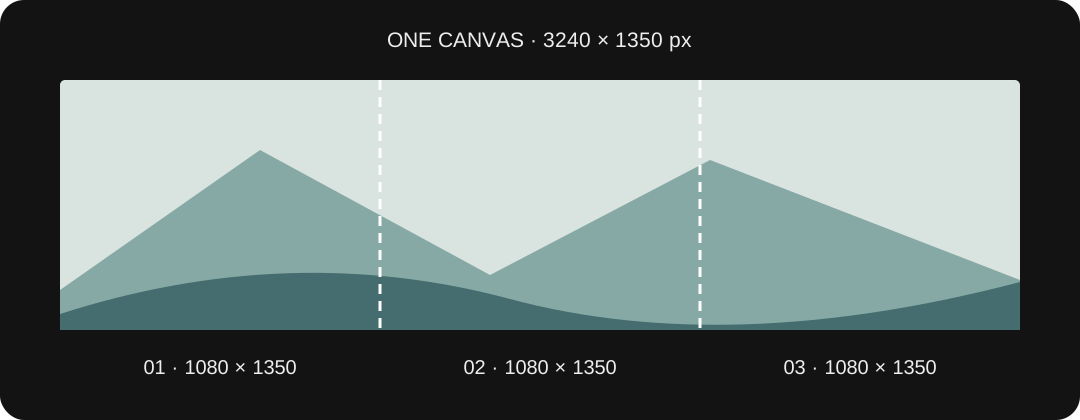
If you create the design in Canva or another editor, set its custom canvas to the combined dimensions, finish the composition and export one PNG or JPG. Then use the splitter to make the separate slides. ToolKnit is not a Canva plugin and does not import an editable Canva project.
Original pixels, crop and padding solve different problems
Keep the original pixels when the image already fits
Original pixels cuts the decoded image without resizing or trimming it. A 2160 × 1350 source split into two gives two 1080 × 1350 images. But a 1080 × 1920 portrait split into two gives two 540 × 1920 images. Cutting a portrait in half does not turn it into two 4:5 portraits.
When the source dimension is not divisible by the slide count, every pixel still belongs to a slice. A 1001-pixel-wide source split into three produces widths of 333, 334 and 334 pixels. This is useful for exact coverage; it may be unsuitable for an app that crops all slides to one common ratio. Prepare evenly divisible dimensions or choose ratio mode when identical output sizes matter.
Fill the combined canvas when edge cropping is acceptable
Choose Fit a slide ratio → Fill to fill the entire panorama canvas. The tool uses a single scale and alignment for the whole image, then cuts that result. It does not fit each slide independently. The summary shows the percentage of source area removed and whether the image is enlarged.
For example, a 2000 × 1000 source fitted to three 1080 × 1350 slides needs a 3240 × 1350 canvas. Filling scales the source by 1.62 to 3240 × 1620, then removes 270 pixels from its displayed height. At centered alignment that is 135 displayed pixels at the top and bottom, or about 16.7% of the source area in total.
Use Image alignment to move which edge is kept. It ranges from left/top through center to right/bottom; it is not a freeform image editor. For a more deliberate source crop, use the image crop tool first.
Contain the image when all of its content matters
Contain keeps the entire composition and pads the space left over. The same 2000 × 1000 source scales by 1.35 to 2700 × 1350 inside a 3240 × 1350 canvas. Centered alignment leaves 270 pixels of padding at each end. PNG can keep this padding transparent; white and black backgrounds are also available.
Neither cropping nor padding can add detail that was not in the source. A larger output width can make text or photos look softer when enlarged. Use a higher-resolution original when possible, or lower the output width with the image resizer or the splitter’s width setting.
A three-slide panorama, from preview to ZIP
- Open the example. In the tool, select Try a panorama example. It is a ToolKnit-created synthetic landscape, not a real customer photograph. Its 3240 × 1350 canvas is sized for three 1080 × 1350 slides.
- Keep Left → right, three slides and Original pixels. The overview marks all three regions. Use the swipe preview or arrow buttons to inspect how the landscape connects. On a keyboard, focus the preview and use Left/Right.
- Check the numbers. The summary should say three 1080 × 1350 slices without resizing. If you change the count, expect different slice widths; if you choose ratio mode, review its crop, padding and scale values.
- Choose PNG or JPEG. PNG is suitable for text, graphics and transparency. JPEG is often smaller for photographs but uses lossy encoding and a solid background. The actual file size depends on your image.
- Prepare downloads. The tool generates the images sequentially and opens a download panel. Save the ZIP or individual slices. Preparing files does not mean they have already been saved to your device.
- Unzip and select in order. File names contain 01-of-03, 02-of-03 and 03-of-03. The ZIP also contains a readable order-and-dimensions note. Select the images in ascending order in your posting app and check its final preview.
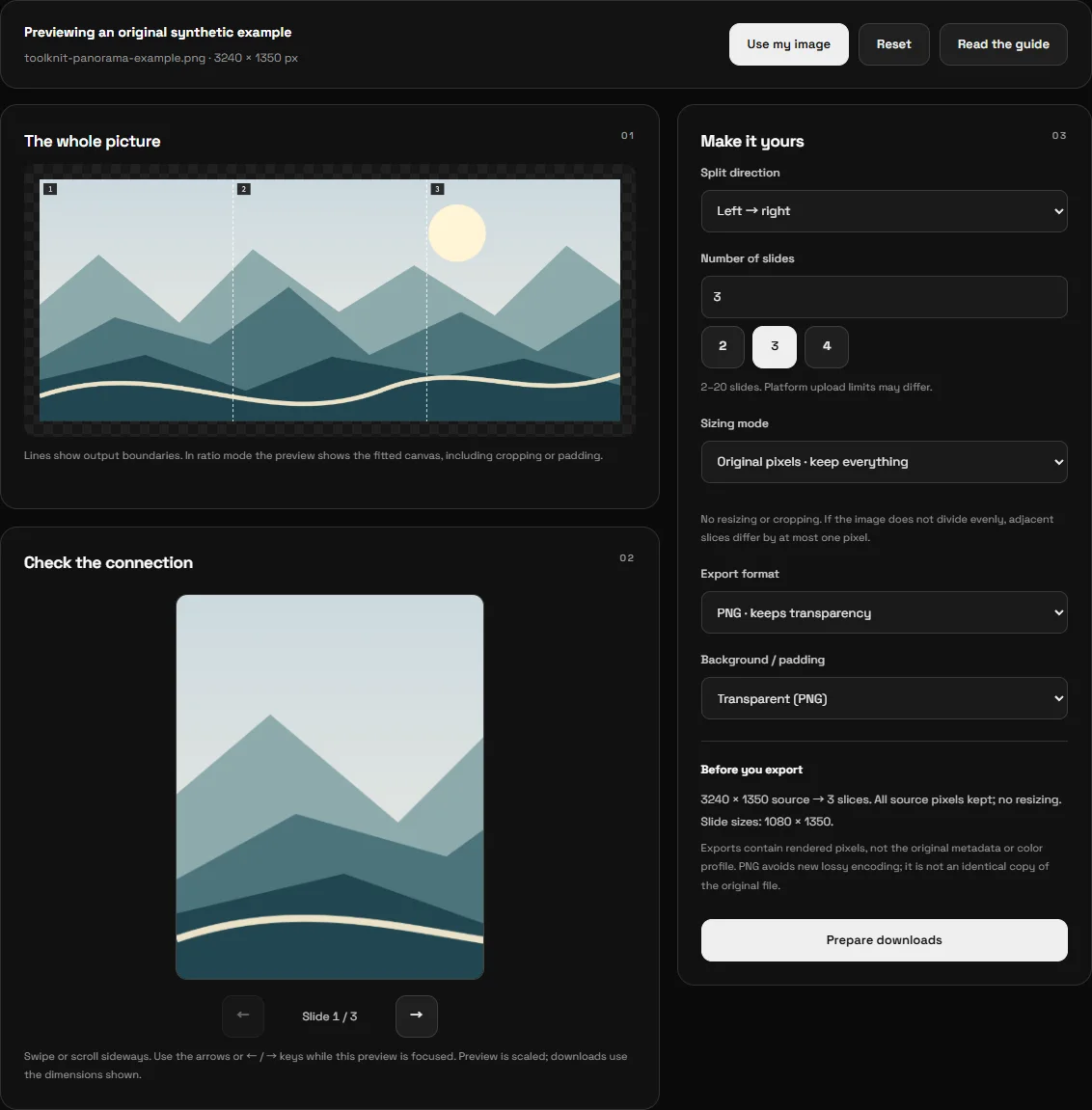
Use Use my image to replace the example. The current split options are retained for a new image, so check them before exporting. Reset removes the loaded image, previews and prepared downloads from the tool and restores the default settings; it does not delete files you have already downloaded.
Give every slide a purpose without breaking the seam
A seamless composition works best when each slide is understandable on its own and also invites the next swipe. Let a path, horizon, color band or other background element cross the boundary. Keep a face, a short word or a critical label fully inside one slide, since users can pause at any point.
- Travel panorama: use the first slide to establish the scene, then let the horizon continue. Avoid putting a face directly on a cut line.
- Before-and-after explanation: build one canvas with a shared baseline so the transition stays legible. The splitter does not compare or edit the two photographs for you.
- Step-by-step design: put one main idea in each slide and use a connecting line across the complete canvas. Keep text comfortably inside the edges because a publishing app may crop differently.
Need to combine several images first? Use Image Stitcher to produce a single long image, then return to the splitter. A 3×3 profile grid is a different layout: it cuts both rows and columns into nine tiles, whereas a carousel follows one continuous direction.
Split a long screenshot from top to bottom
Select Top → bottom for a long screenshot, infographic or illustrated reading sequence. Original pixels keeps the full width and distributes the height among the slices. For example, 1080 × 4001 split into four yields heights of 1000, 1000, 1000 and 1001 pixels.
The preview stacks those slices vertically so their original edges connect. This is not the same spatial effect as a horizontal carousel: swiping left from the bottom of one section to the top of the next does not make their left and right edges match. Choose the direction for the intended reading flow rather than expecting the tool to rearrange the image’s contents.
Why the result looks wrong, and what to check
| Symptom | Likely check | What to do |
|---|---|---|
| Part of the picture is missing | Fill mode cropped outside the fitted canvas. | Choose Original pixels or Contain. Review the crop percentage and alignment. |
| White or transparent borders | The source ratio differs from the combined canvas in Contain mode. | Keep the padding, choose Fill, or redesign the source dimensions. You cannot always avoid both padding and cropping. |
| The exported image looks soft | The scale exceeds 1×, or JPEG quality is too low. | Use a larger source, reduce output width, or export PNG. More output pixels alone do not recover detail. |
| A connection breaks after posting | Reordered files, a separate crop, platform compression or slide gaps. | Check 01, 02, 03 order, use one consistent ratio and inspect the platform preview. Local continuity is not a guarantee of platform display. |
| The browser refuses a large export | The input, output pixel or encoded-byte budget was exceeded. | Lower the width or count. For a huge source, resize it before loading. Close memory-heavy tabs if decoding still fails. |
| A JPG downloads with a white background | JPEG cannot encode alpha transparency. | Choose PNG with Transparent for alpha, or explicitly use a white or black JPEG background. |
Formats, privacy and the meaning of “lossless”
The splitter accepts a single JPG, PNG or static WebP up to 20 MiB. It checks file contents rather than trusting the extension. Animated PNG/WebP, GIF, SVG and HEIC are not supported. Convert or export a still image before using it.
The workspace displays the current device guard: 12 or 24 megapixels for a source and for the complete output, a 16,384-pixel source-side limit, and 64 or 128 MiB of encoded output images. These are application limits, not measured free memory or a promise that every device will handle the maximum. Previews are smaller than exports, and full-size canvases are released after each image is encoded.
Your image is decoded, previewed and split in your browser; the tool does not upload its contents or file name. Loading website components and normal analytics can still use the network. ZIP support is loaded when you prepare a download, so offline availability depends on what your browser has already cached.
Original pixels plus PNG avoids resizing and a fresh lossy compression step. It does not preserve the original file byte for byte: browser decoding can apply orientation and color conversion, and exported images do not carry the source metadata or color profile. JPEG export is lossy even at a high quality setting. If your work requires exact profile or metadata preservation, keep the original file and use a workflow designed for those requirements.
This guide describes local geometry and tool behavior. Instagram, TikTok and Douyin publishing have not been end-to-end verified here, and no social account is connected. Always make the final decision from the actual app’s posting preview.
Choose your image, check the dimensions and seams, then save the numbered result.